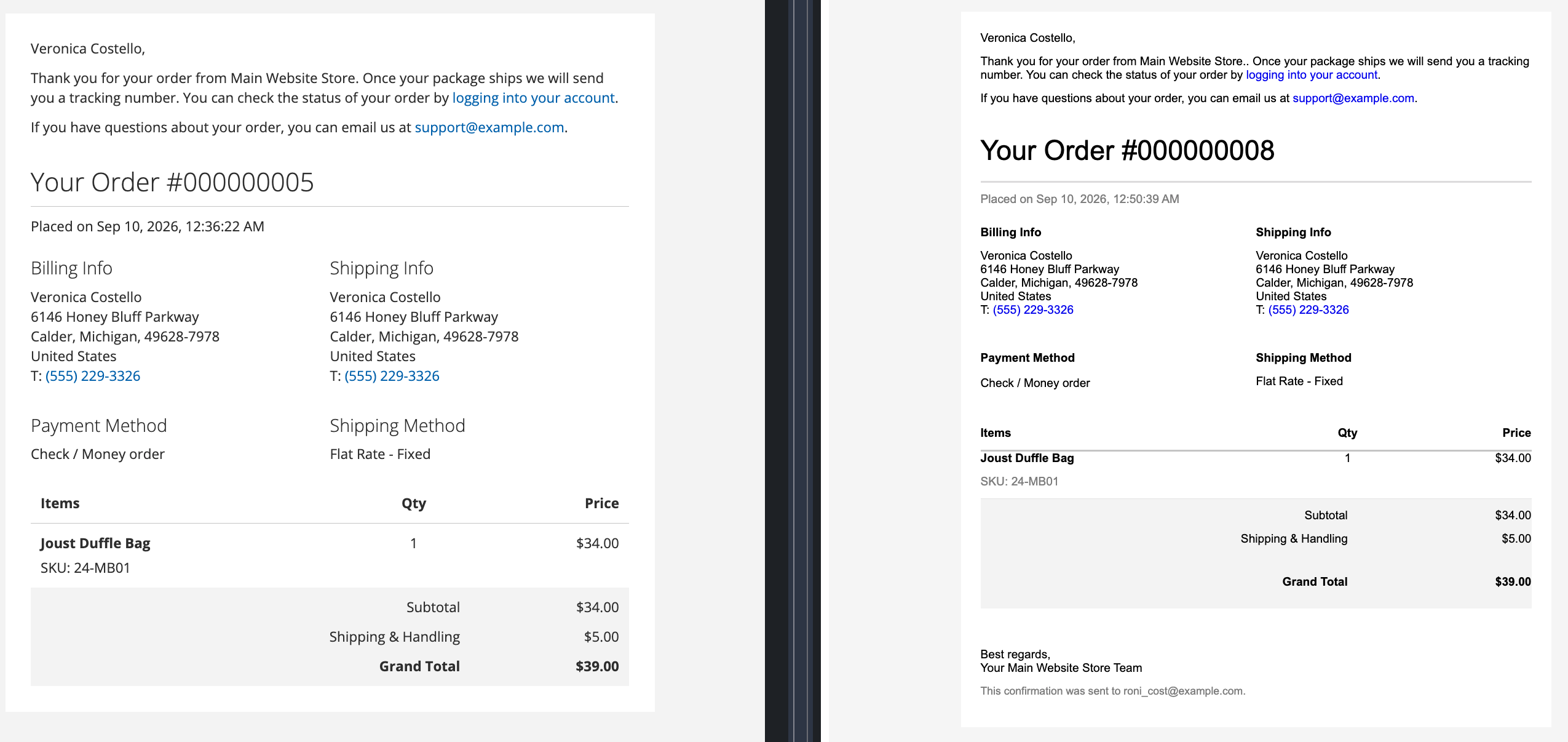
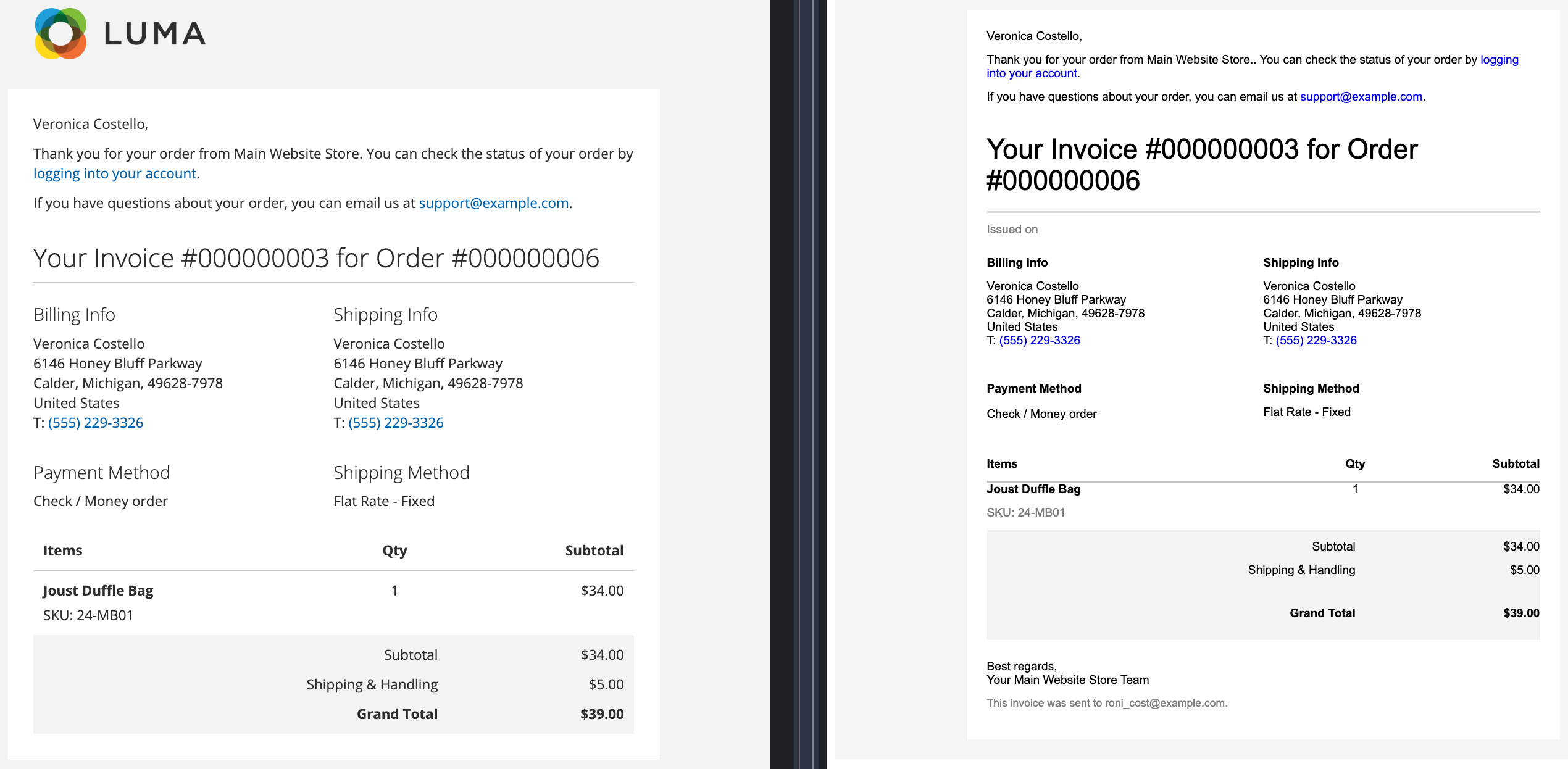
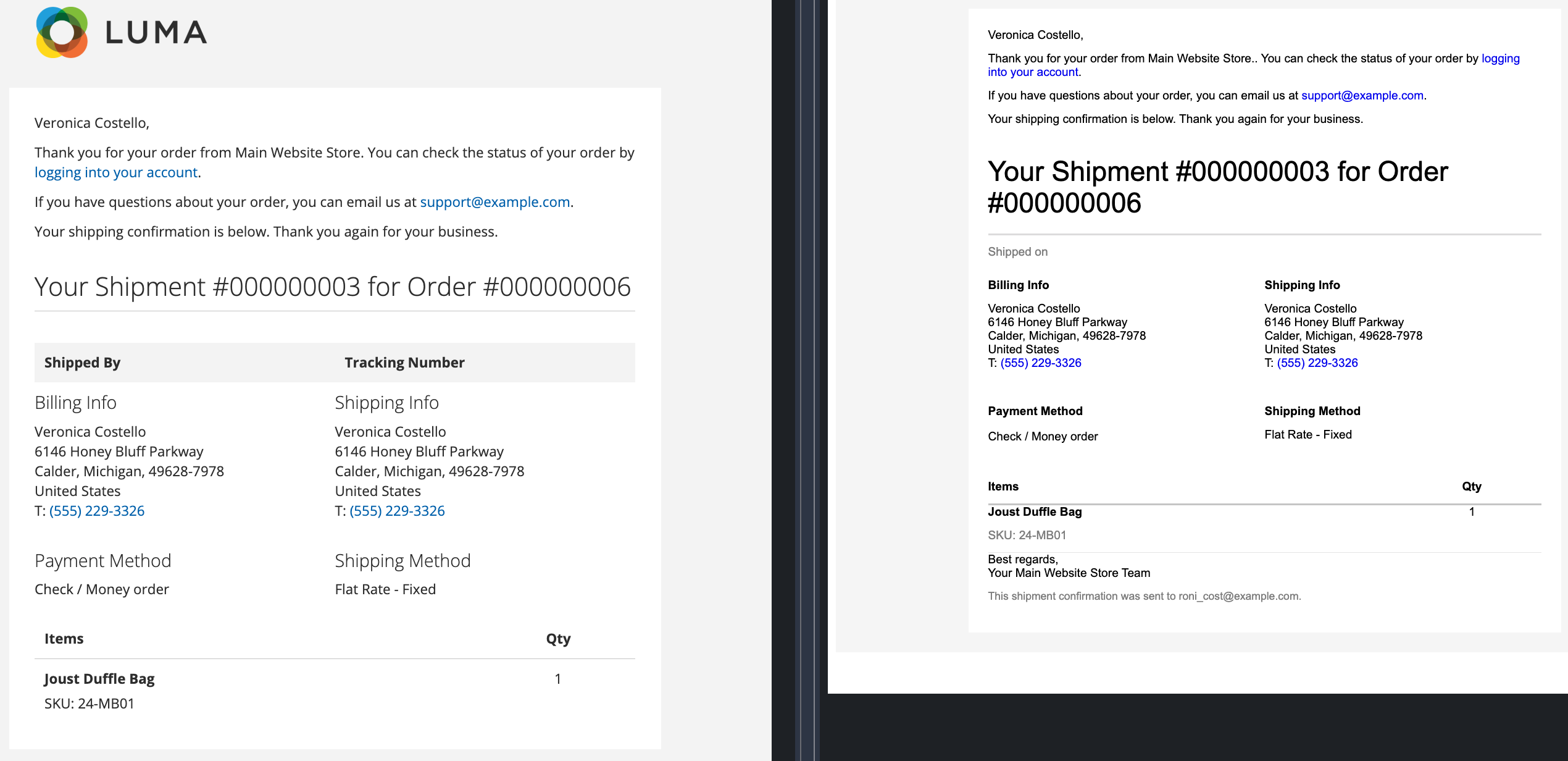
Extension: Mail PageBuilder
-
Extension Name: ext.magento2.cleverzoeger.mail-page-builder (CleverZoeger_MailPageBuilder)
-
Magento Compatibility: 2.4.8, 2.4.7, 2.4.6
-
PHP Compatibility: 8.1, 8.2, 8.3, 8.4
Mail PageBuilder brings the Adobe PageBuilder editor to Magento’s transactional email
templates. On the Edit Email Template page the Template Content field gets an
"Edit with PageBuilder" button — just like CMS pages and blocks — so newsletters,
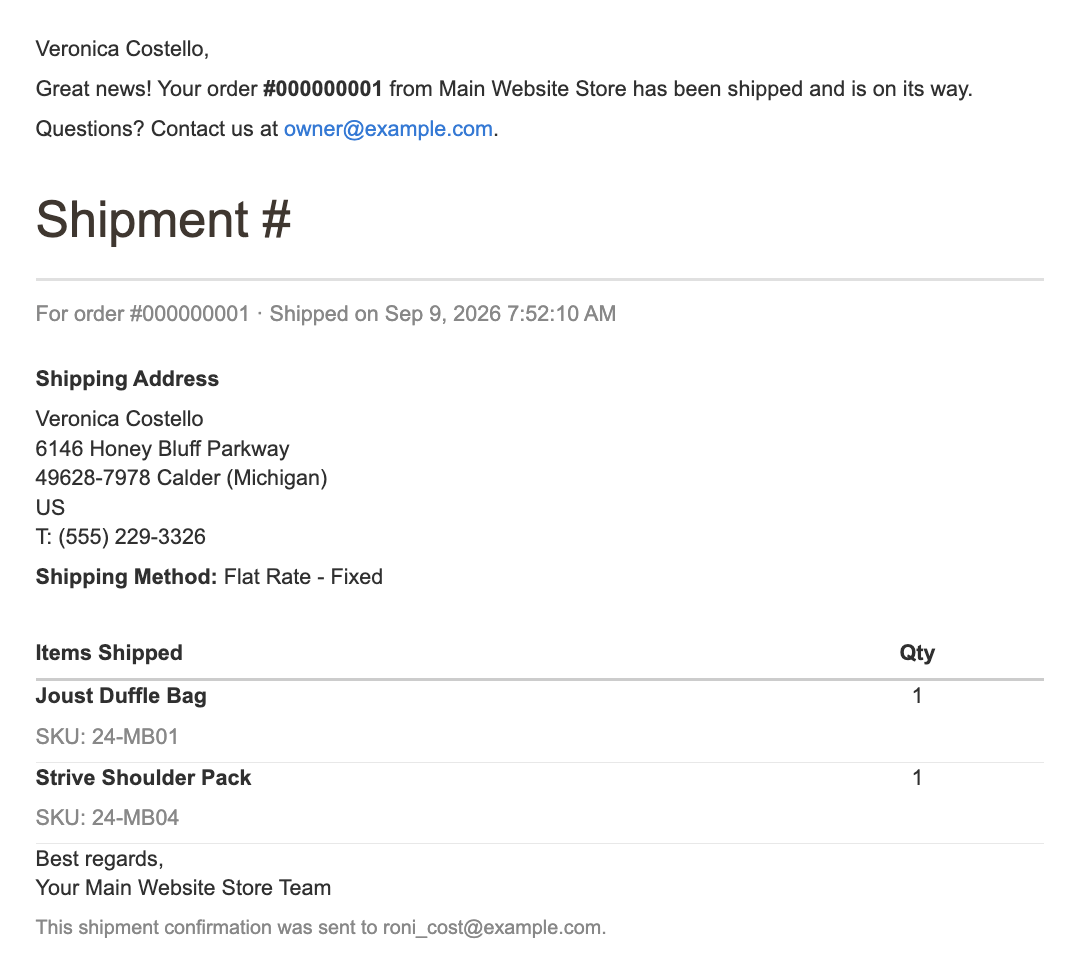
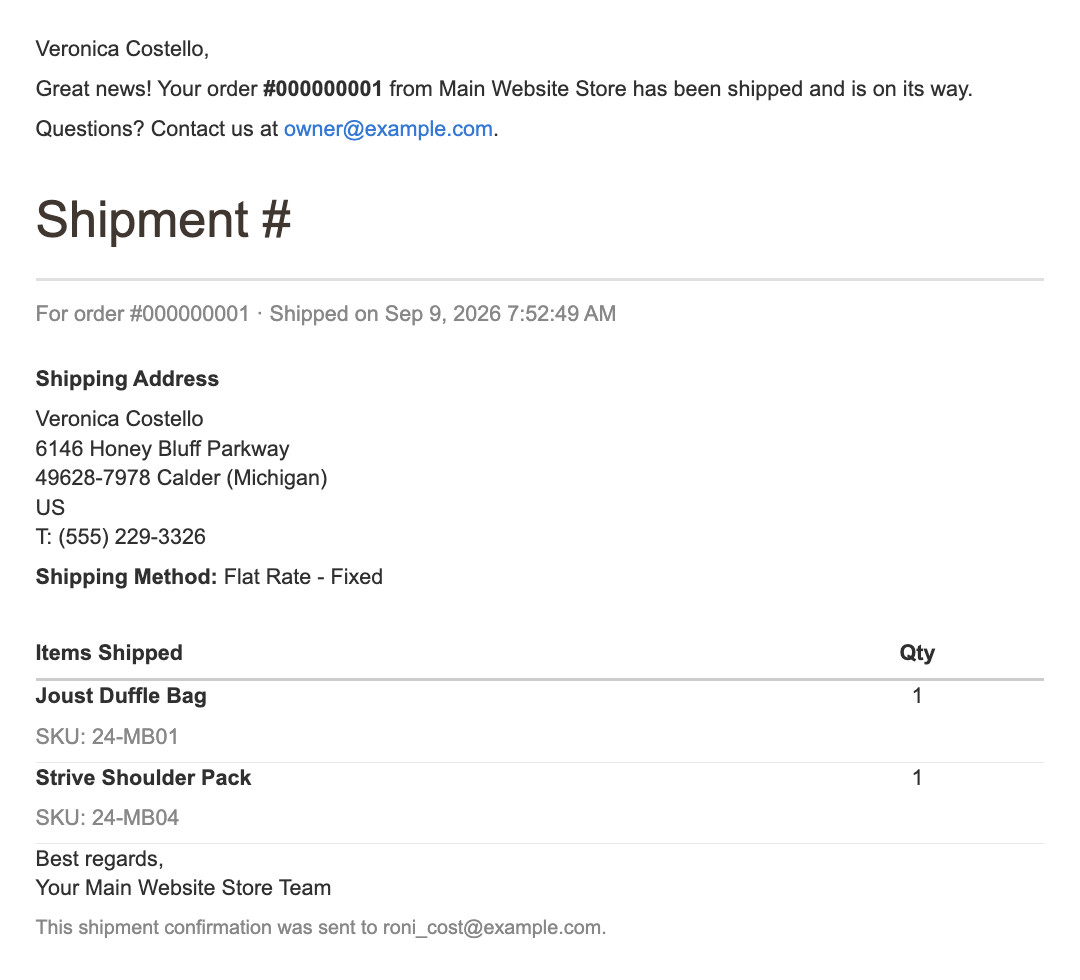
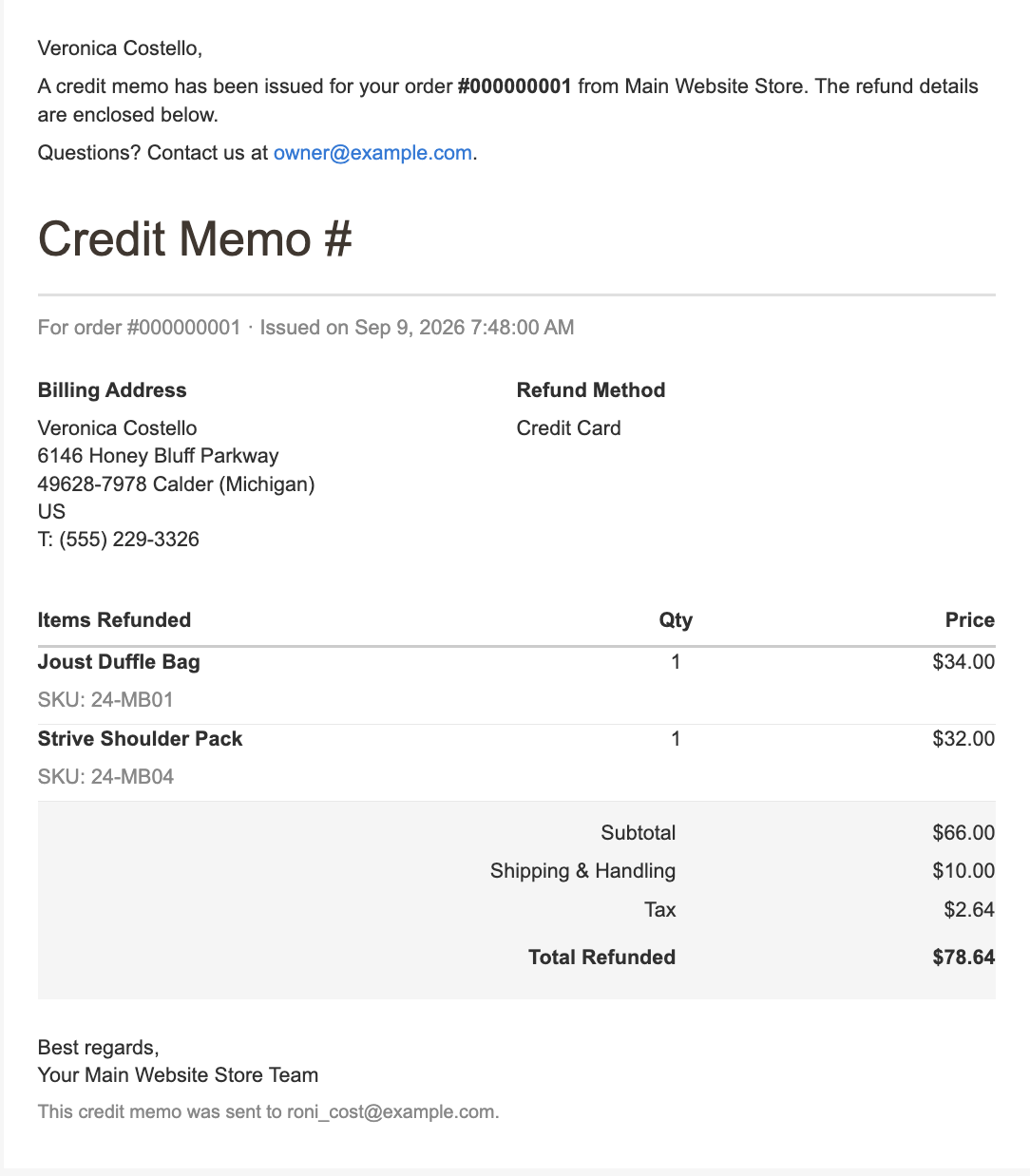
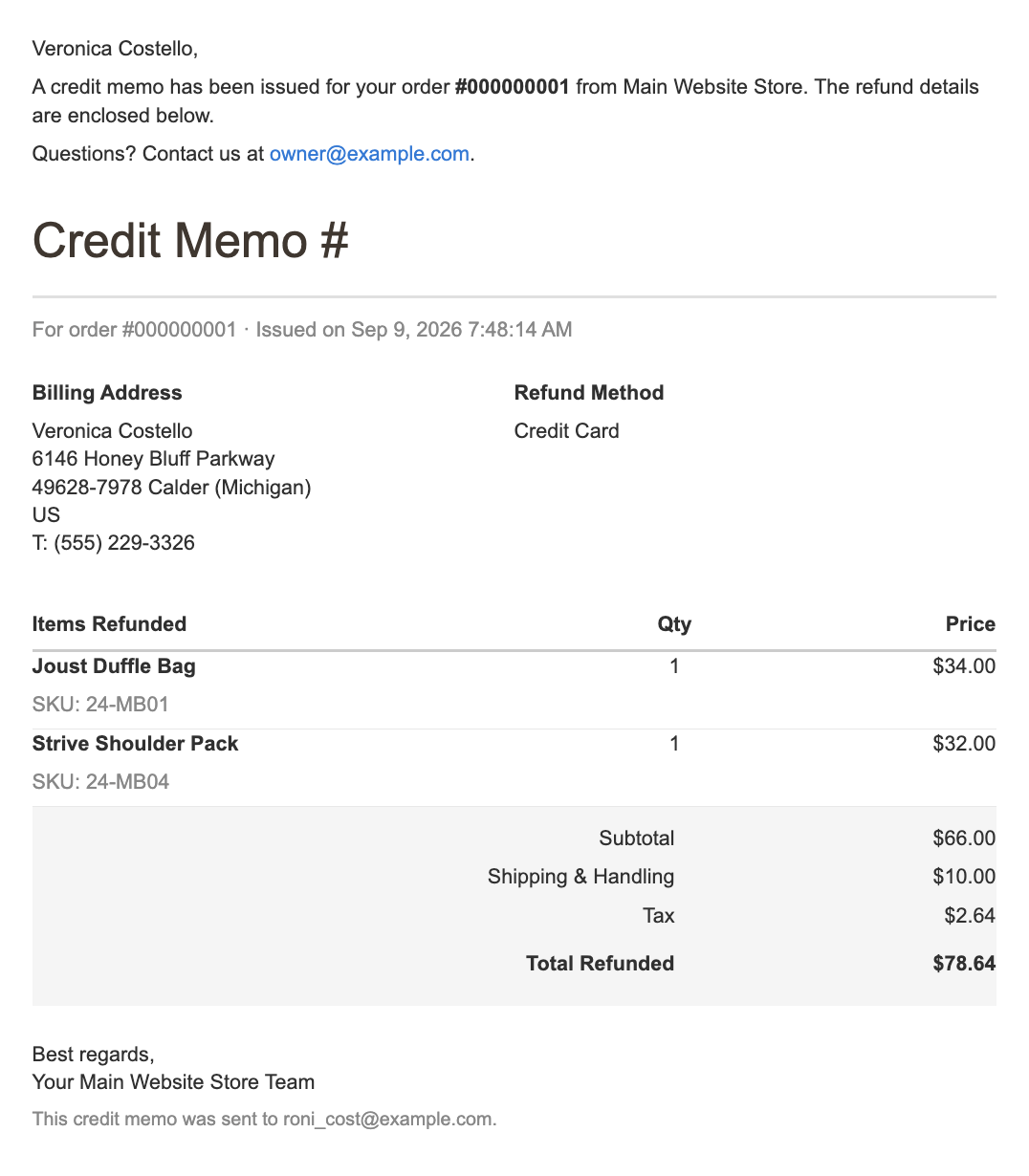
order confirmations, invoices, shipment and credit-memo mails can be designed visually
with drag-and-drop blocks instead of hand-written HTML.
The PageBuilder layout is stored in a template variable and rendered at send time. The
module also hardens the generated HTML (table layout, inline styles, Outlook fallbacks,
optional plain-text alternative, …) so the result renders reliably in Outlook, Gmail,
Apple Mail and other clients.
Features
-
"Edit with PageBuilder" button on the Template Content field of every transactional email template — the same editing experience as CMS pages/blocks, embedded directly on the template edit page.
-
Email-specific PageBuilder blocks for dynamic data, grouped into their own panel sections: Customer, Billing Address, Shipping Address, Order, Items and (when installed) Amasty order attributes.
-
Order Items block — a repeatable row that iterates over the order’s items, so a single designed row is rendered once per ordered product.
-
Product Data block — pull a specific product’s data (name, image, description, brand, price, link) into the email by SKU.
-
Configurable item columns — choose which product/item attributes are offered as order-item columns (defaults: quantity, name, SKU, description, price, image).
-
Live preview with real data — the template preview builds a sample order from a configurable sample product ID (or several) and customer ID, so you see real prices, totals, names and addresses.
-
Email-client hardening of the generated HTML — div→table conversion, inlined styles, mobile column reflow, shorthand-hex expansion, Outlook ghost-table and rounded-button fallbacks, optional UTM link tagging and an optional plain-text alternative.
-
Multilingual — German (
de_DE) and English (en_US) UI and block labels.
Initial Setup Steps
-
Step-1: Make sure the module is Enabled under General (see below).
-
Step-2: Set a Sample product ID and Sample customer ID under Template Preview so the preview can render with real data.
-
Step-3: Review the Email Output / Client Compatibility options — the recommended defaults are already active.
-
Step-4: Open a transactional email template, click Edit with PageBuilder, design the content and use Preview Template to verify the result.
Implementation
To configure Mail PageBuilder, go to Stores → Configuration → CLEVER+ZÖGER GMBH → Mail PageBuilder.
The PageBuilder content of each template is kept in the template variable
cleverzoeger-email-pagebuilder-content and inserted into the template text as the
directive {{var cleverzoeger-email-pagebuilder-content}}. At send time (and in the
preview) the module replaces this directive with the stored PageBuilder markup, resolves
all inner {{var}}/{{for}} directives and converts the layout to email-safe HTML.
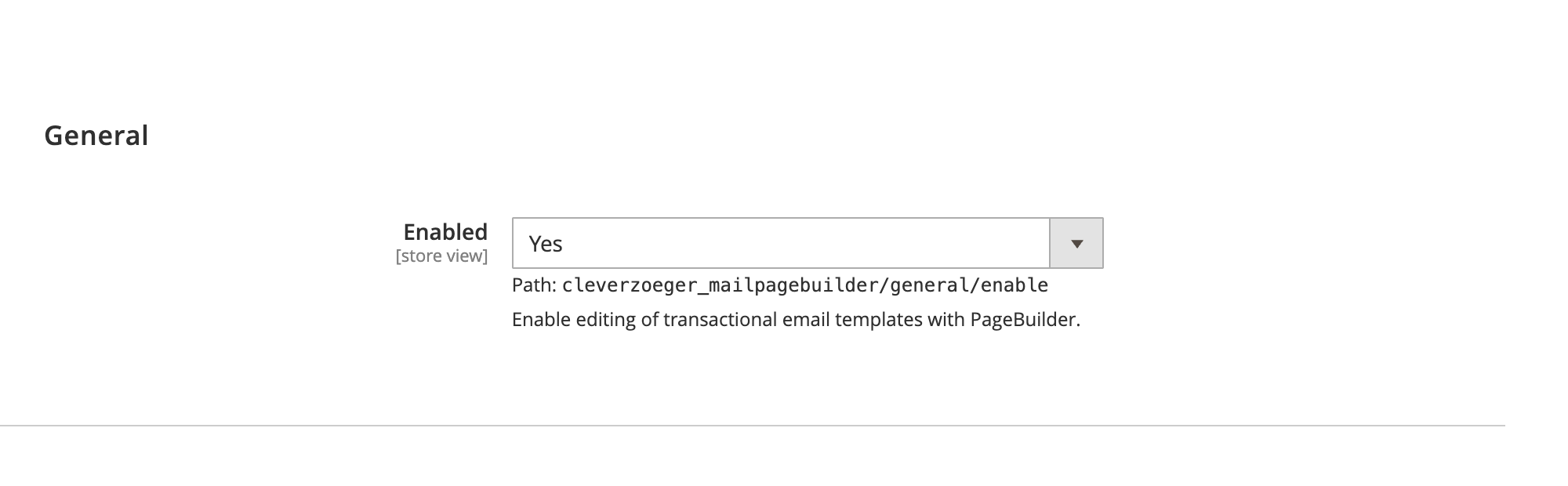
Backend: General Settings
-
Enabled — switches the PageBuilder editing of transactional email templates on or off. Can be set per store view.
Backend: Configuration
All settings live in one section, split into the groups below.
Variable Blocks
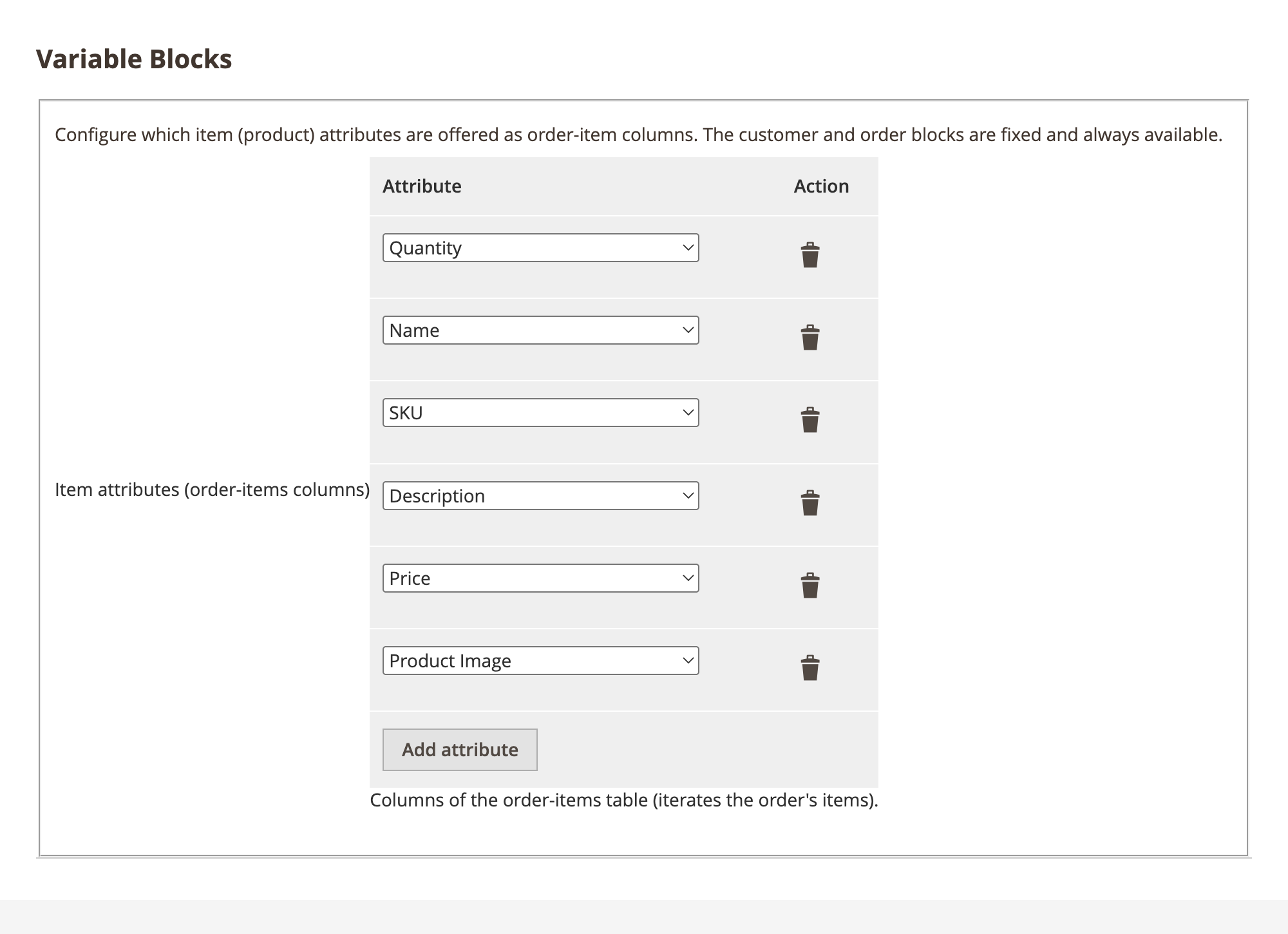
The Variable Blocks group controls the dynamic building blocks. The Customer and Order blocks are fixed and always available; this group configures the item columns.
-
Item attributes (order-items columns) — the list of product/item attributes offered as columns of the Order Items block. Defaults are quantity, name, SKU, description, price and image; any additional product attribute (e.g.
color,weight,row_total) can be added.
Template Preview
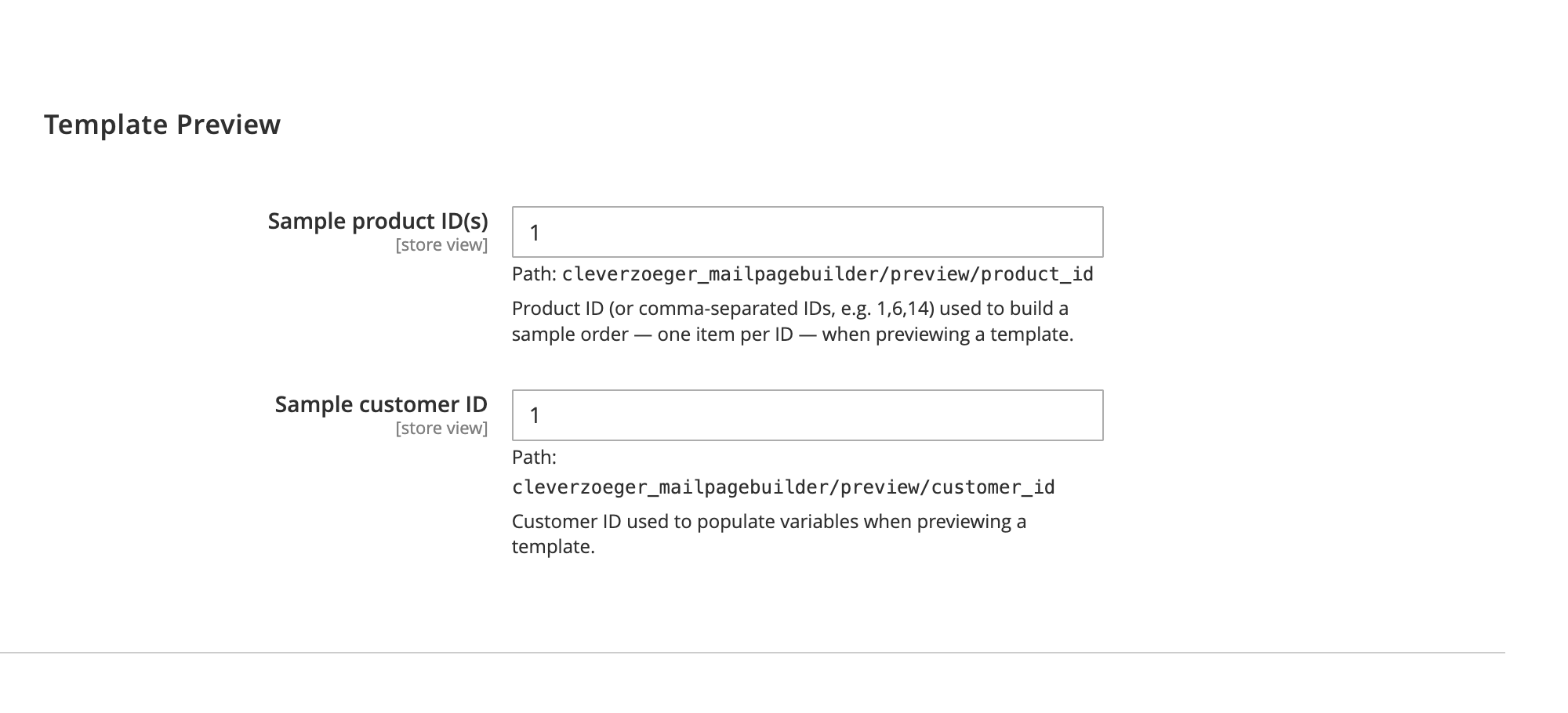
The Template Preview group defines the sample data used when previewing a template. Both values must point to real records for the preview to render.
-
Sample product ID(s) — a product ID, or a comma-separated list (e.g.
1,6,14). One order item is built per ID, so you can preview a multi-line order. -
Sample customer ID — the customer whose data (name, addresses, …) is used to populate the customer/billing/shipping variables in the preview.
Email Output / Client Compatibility
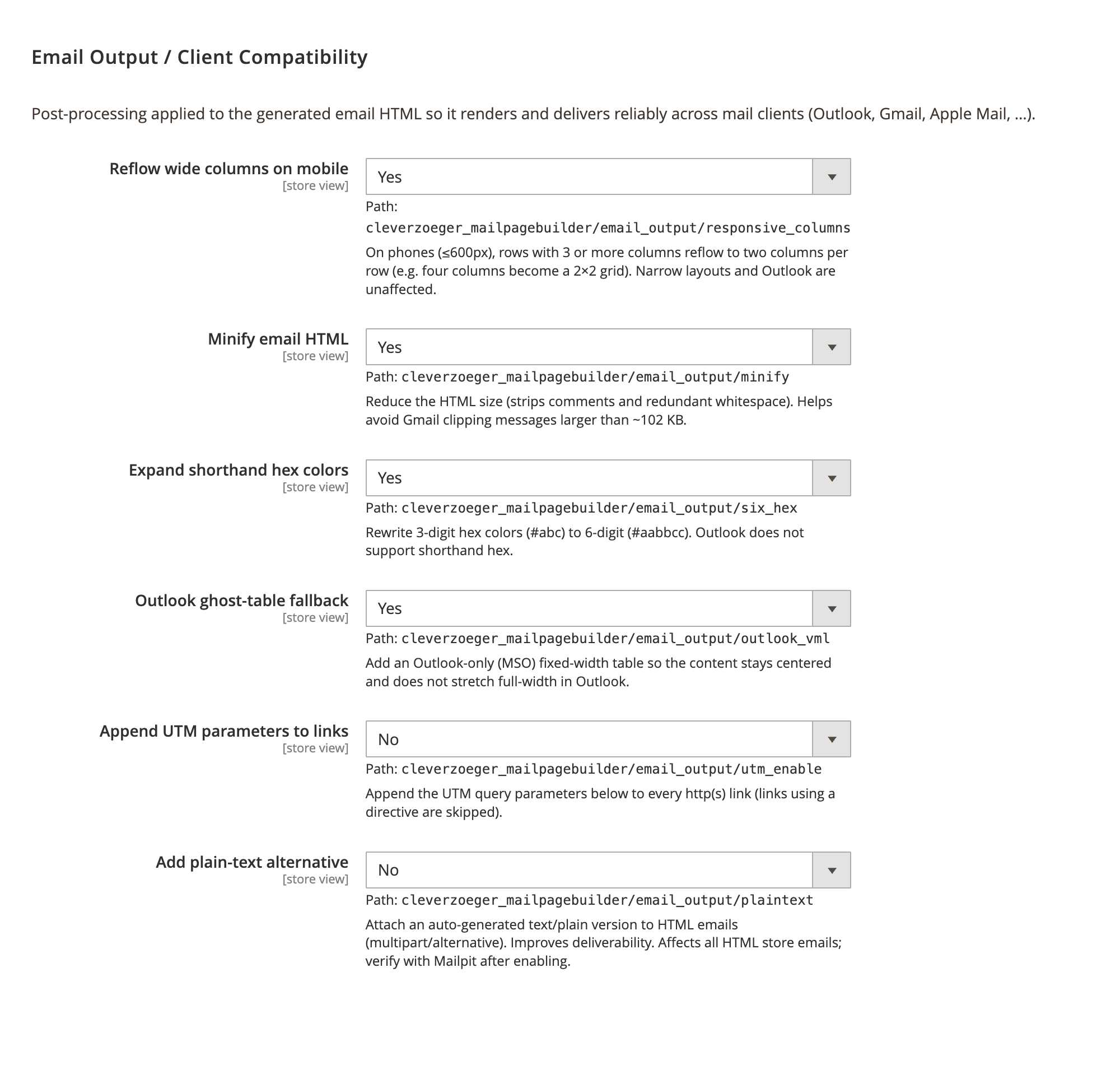
These options post-process the generated email HTML so it renders and delivers reliably across mail clients. The recommended defaults are enabled out of the box.
-
Reflow wide columns on mobile — on phones (≤600px), rows with 3 or more columns reflow to two columns per row (e.g. four columns become a 2×2 grid). Narrow layouts and Outlook are unaffected.
-
Minify email HTML — strips comments and redundant whitespace to reduce size and help avoid Gmail clipping messages larger than ~102 KB.
-
Expand shorthand hex colors — rewrites 3-digit hex colors (
#abc) to 6-digit (#aabbcc), which Outlook requires. -
Outlook ghost-table fallback — adds an Outlook-only (MSO) fixed-width table so the content stays centered and does not stretch full-width in Outlook; also renders rounded buttons via VML.
-
Append UTM parameters to links — appends
utm_source,utm_mediumandutm_campaignto every http(s) link (links using a{{…}}directive are skipped). The three UTM values are entered in the fields below the toggle. -
Add plain-text alternative — attaches an auto-generated
text/plainversion to HTML emails (multipart/alternative) to improve deliverability. Affects all HTML store emails; verify with Mailpit after enabling.
Editing an Email Template with PageBuilder
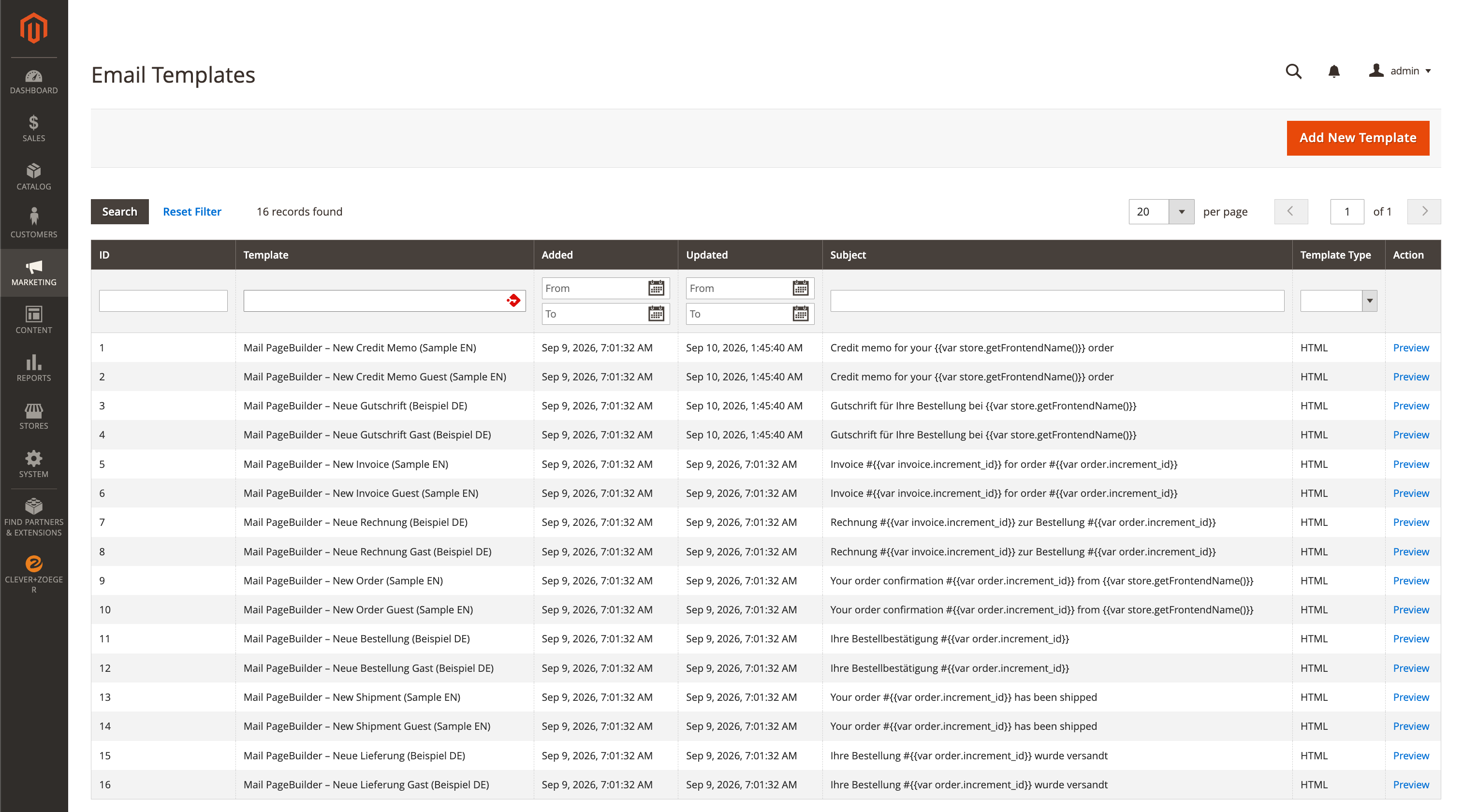
The email template overview stays unchanged. Open a transactional template to edit it.
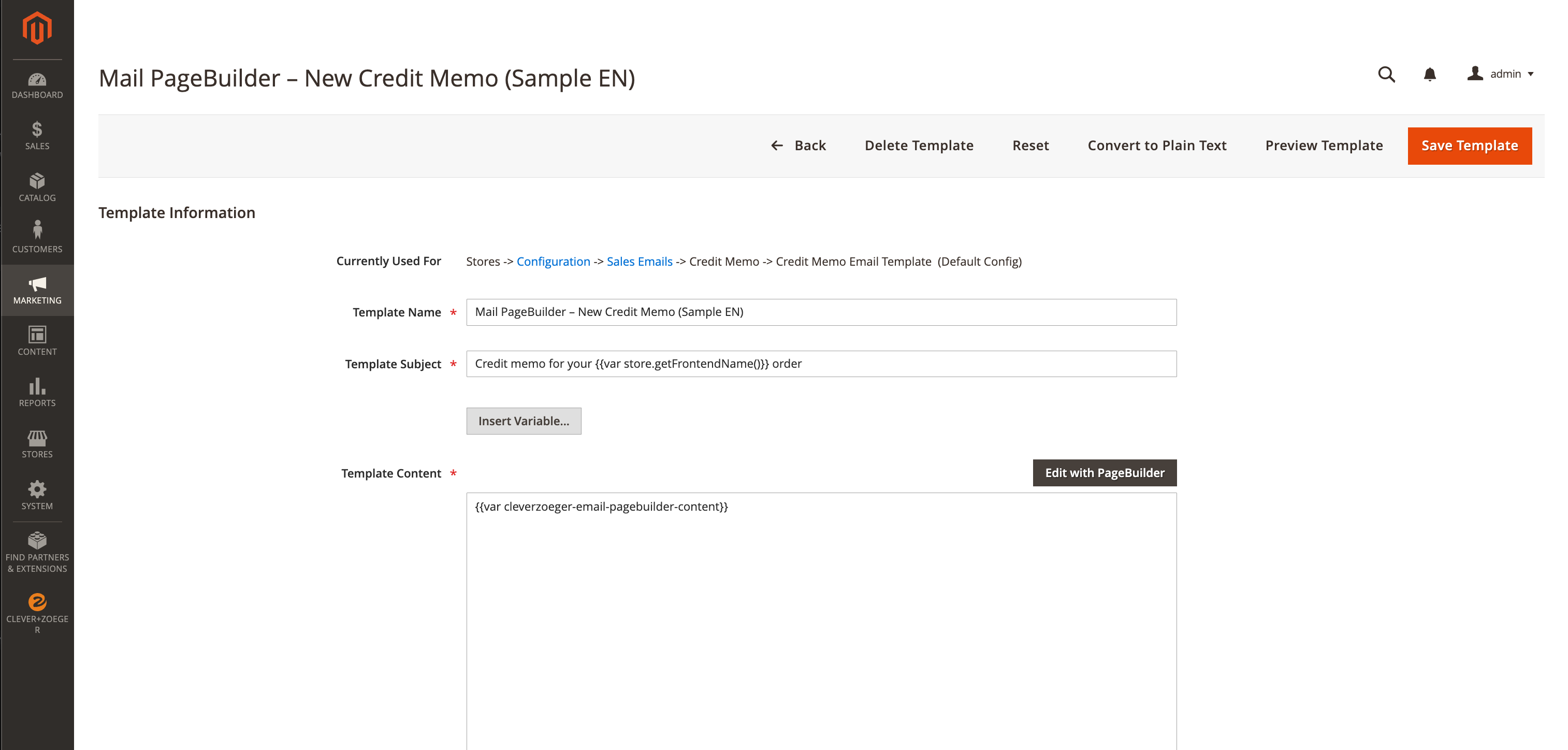
On the Edit Email Template page the Template Content field gets an Edit with
PageBuilder button. Clicking it inserts the cleverzoeger-email-pagebuilder-content
variable and opens the embedded PageBuilder stage; clicking it again re-opens the stored
content for editing.
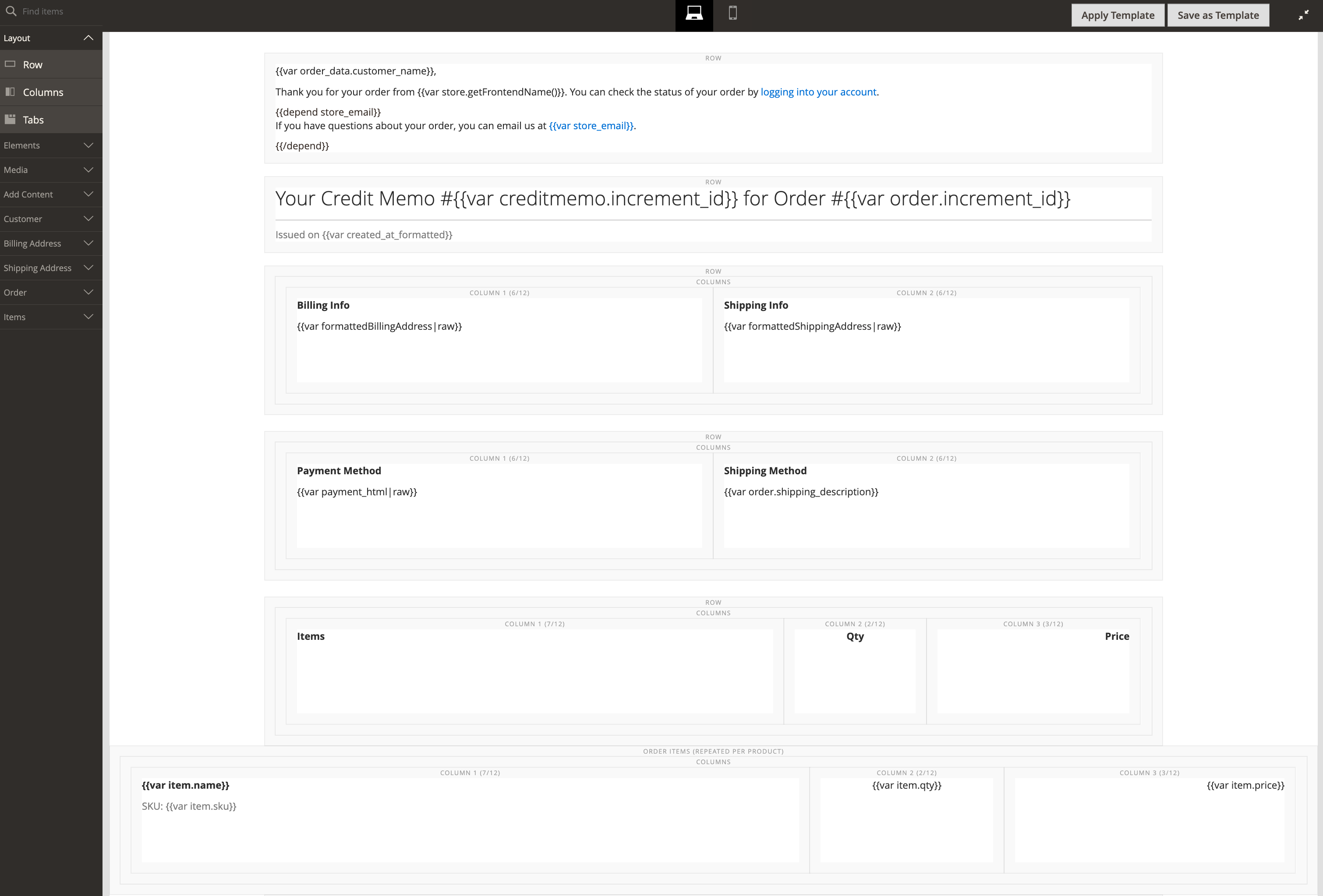
Inside the stage the email-specific blocks are available from the panel, alongside the standard PageBuilder elements.
Available Blocks
The module adds its own panel sections with drag-and-drop blocks. Each block inserts the matching email directive, so the value is filled in at send time.
-
Customer — salutation, prefix, title, suffix, first name, last name, e-mail. The Salutation block renders a full salutation line (e.g. "Dear Mr. …" / "Dear Ms. …").
-
Billing Address / Shipping Address — name fields, company, street, postcode, city, region, country, telephone and VAT ID of the respective address.
-
Order — increment ID, order date/time, subtotal, shipping, tax, discount, grand total, payment method, coupon / rule name, coupon / rule description, carrier, shipping description, carrier account number, VAT ID and customer note.
-
Items — the configurable item columns plus two special elements:
-
Order Items (repeated per product) — a repeatable row that is rendered once per order item; the columns you place inside it are repeated for every product in the order.
-
Product Data — pull a specific product’s data (name, image, description, brand, price or a link) into the email by SKU.
-
-
Amasty — shown only when the Amasty Order Attributes module is installed; exposes the custom order attributes as blocks.
Preview with Real Data
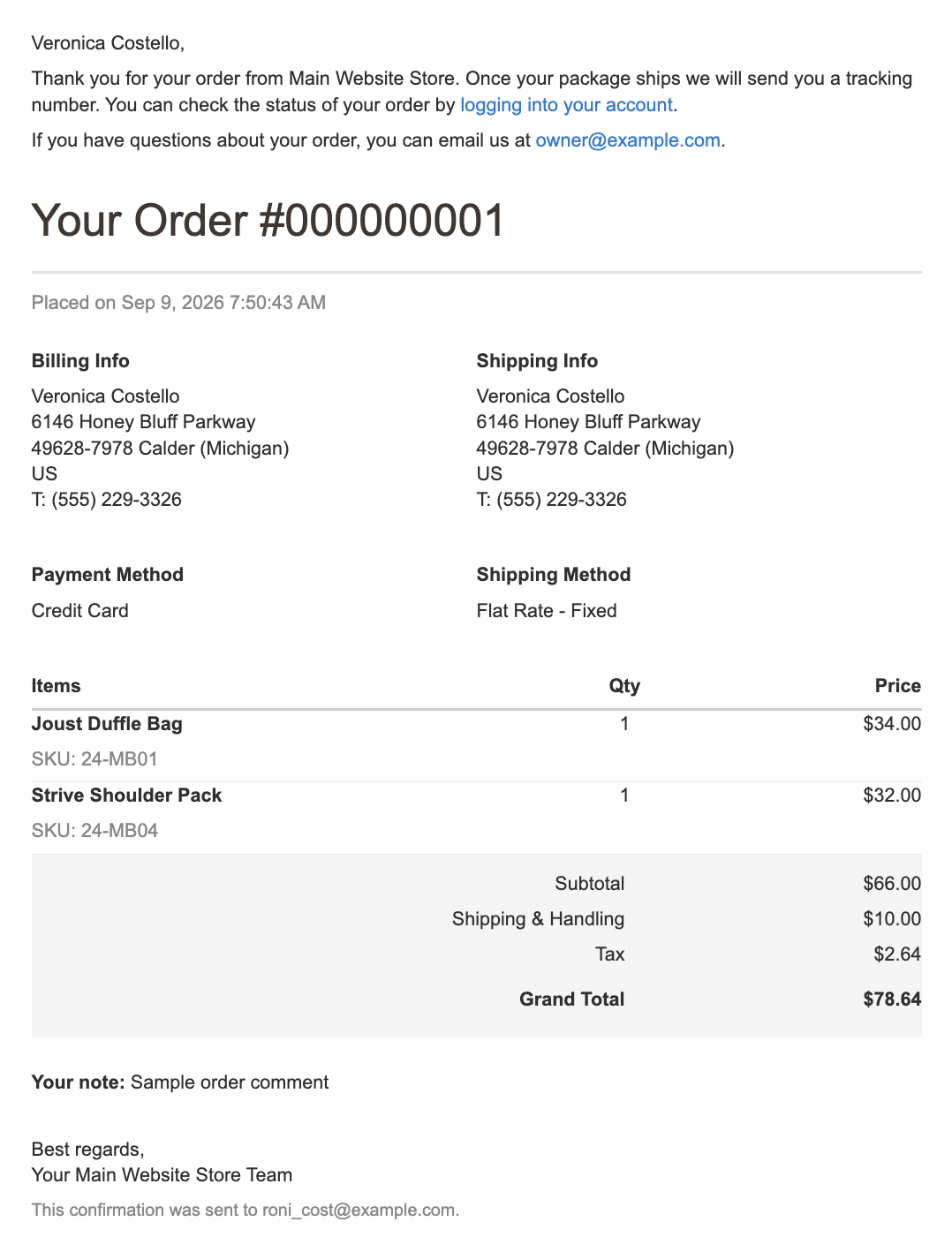
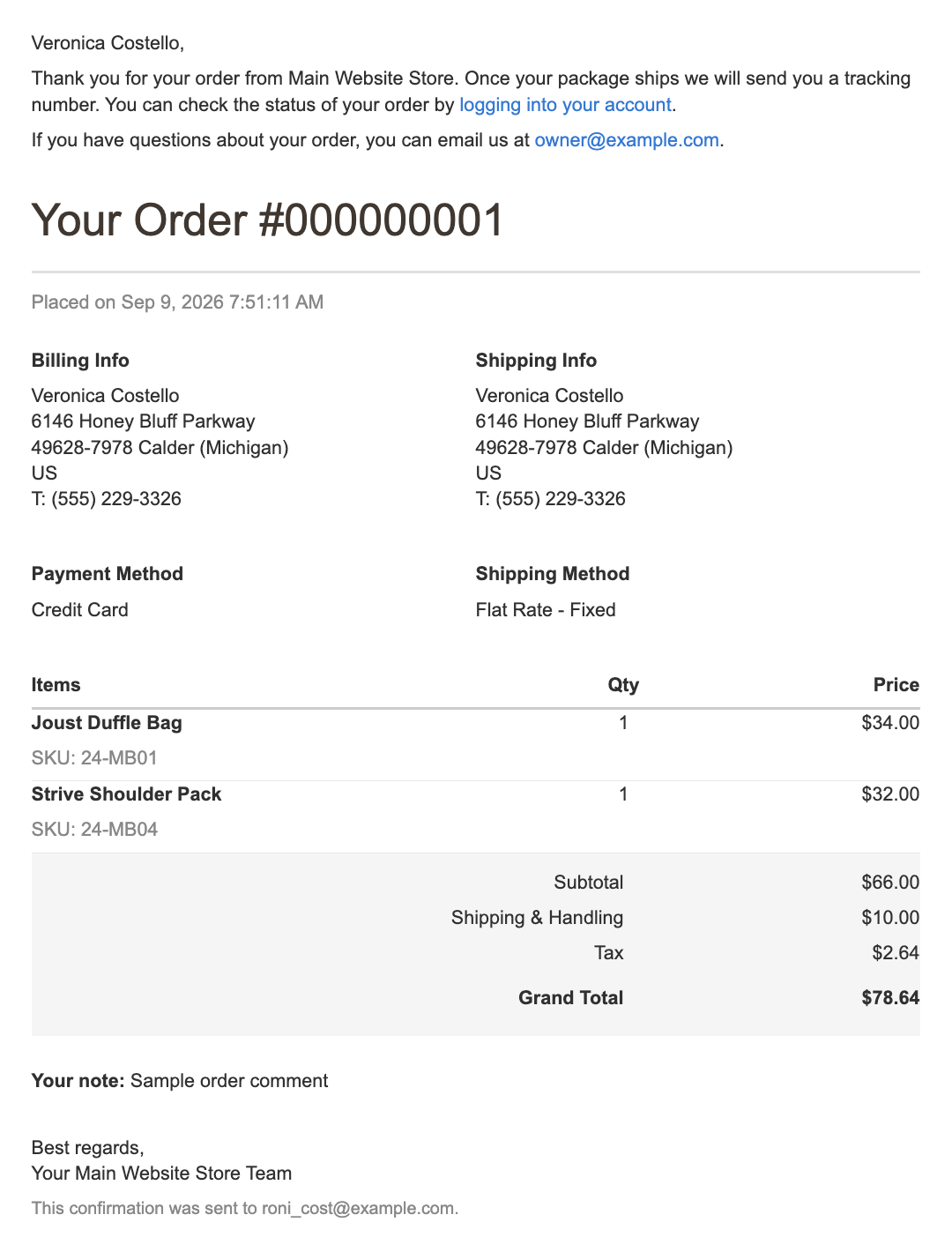
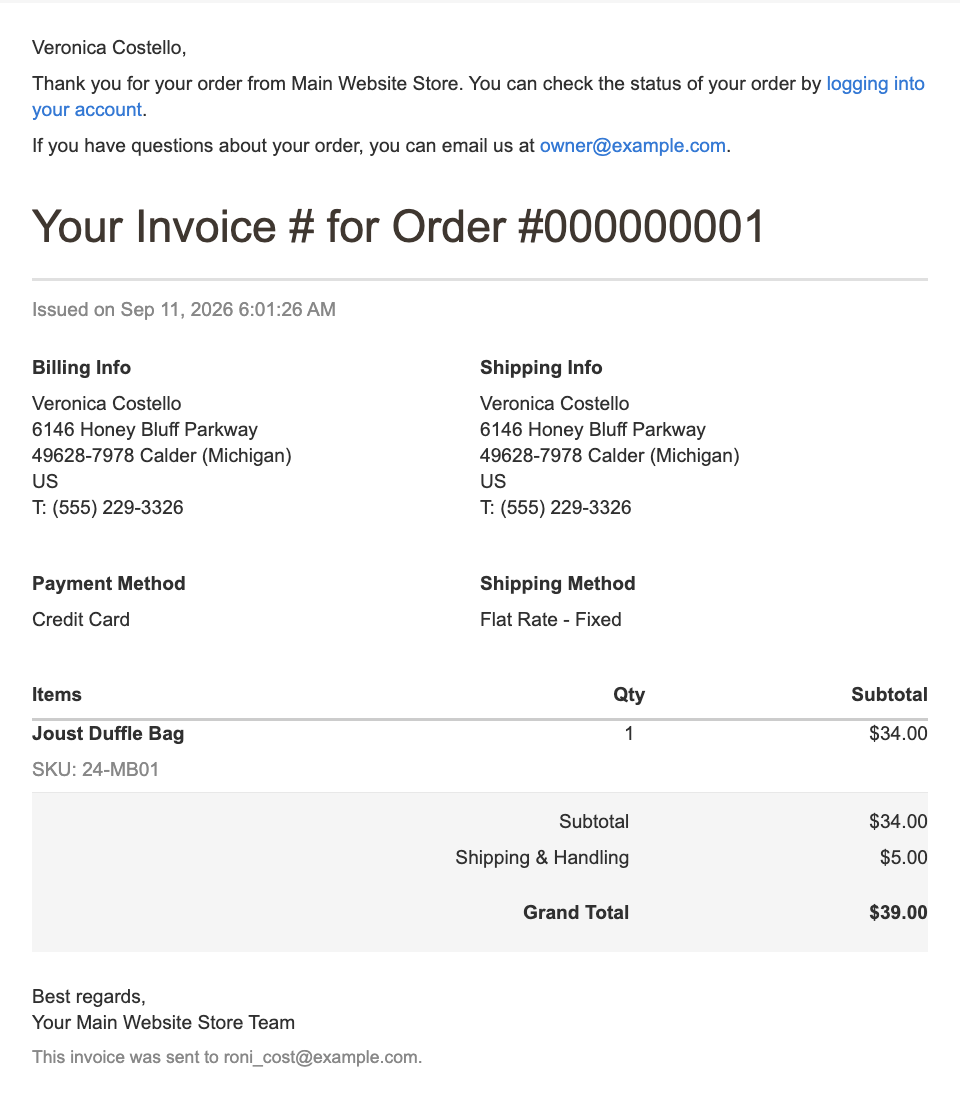
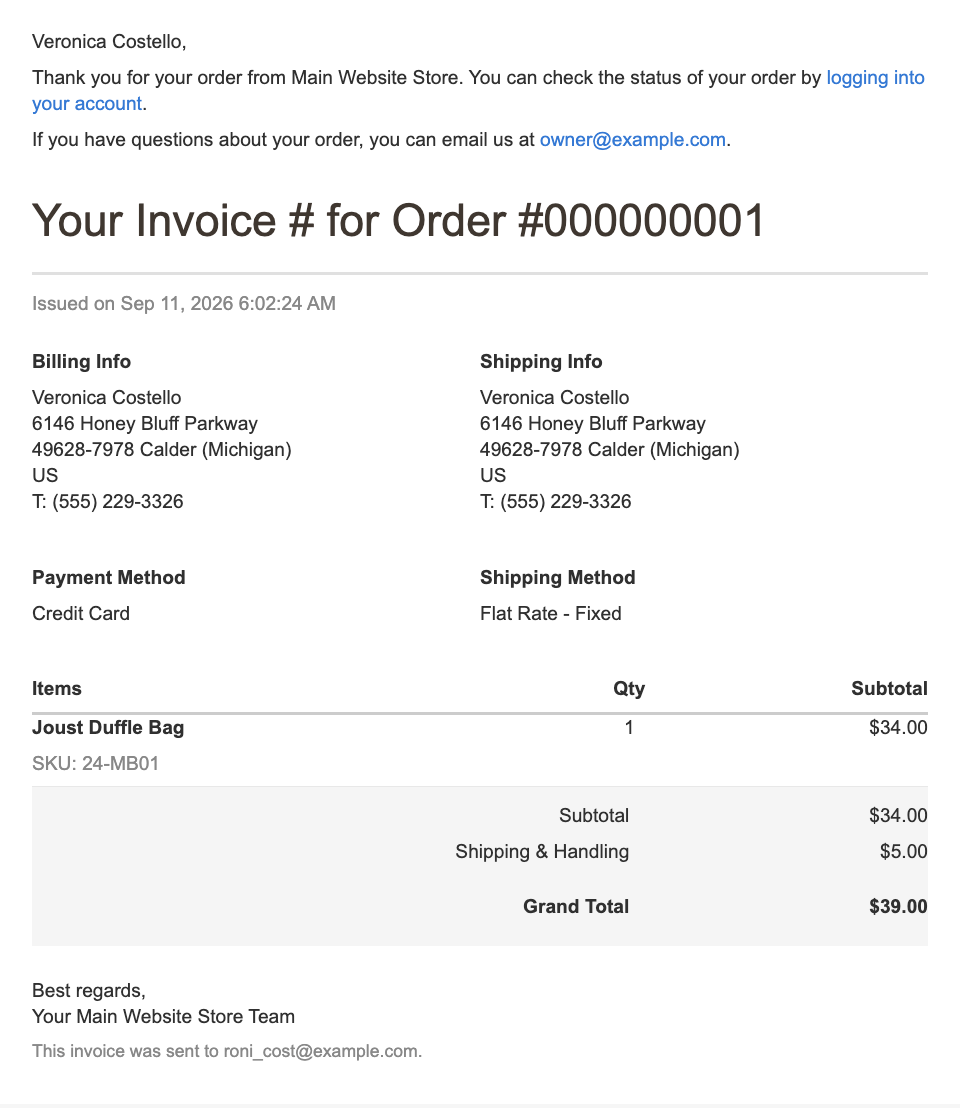
Use Preview Template on the edit page (or Preview in the overview) to render the template with the sample product/customer configured under Template Preview. The preview builds an in-memory sample order — with calculated shipping, taxes and cart-rule discounts — so it shows realistic prices, totals, names and addresses. If the sample IDs are missing or invalid, the preview shows a notice instead.