Extension: Withdrawal
-
Extension Name: ext.magento2.cleverzoeger.withdrawal (CleverZoeger_Withdrawal)
-
Magento Compatibility: 2.4.5, 2.4.6, 2.4.7, 2.4.8, 2.4.9
-
PHP Compatibility: 8.1, 8.2, 8.3, 8.4
The Withdrawal extension for Magento 2 provides a legally compliant revocation form (§§ 355 ff. BGB) for German online shops. Customers can submit their withdrawal through an integrated form; buyer and seller receive an automatic confirmation email. All submissions are stored and can be reviewed in the Magento backend.
Features
-
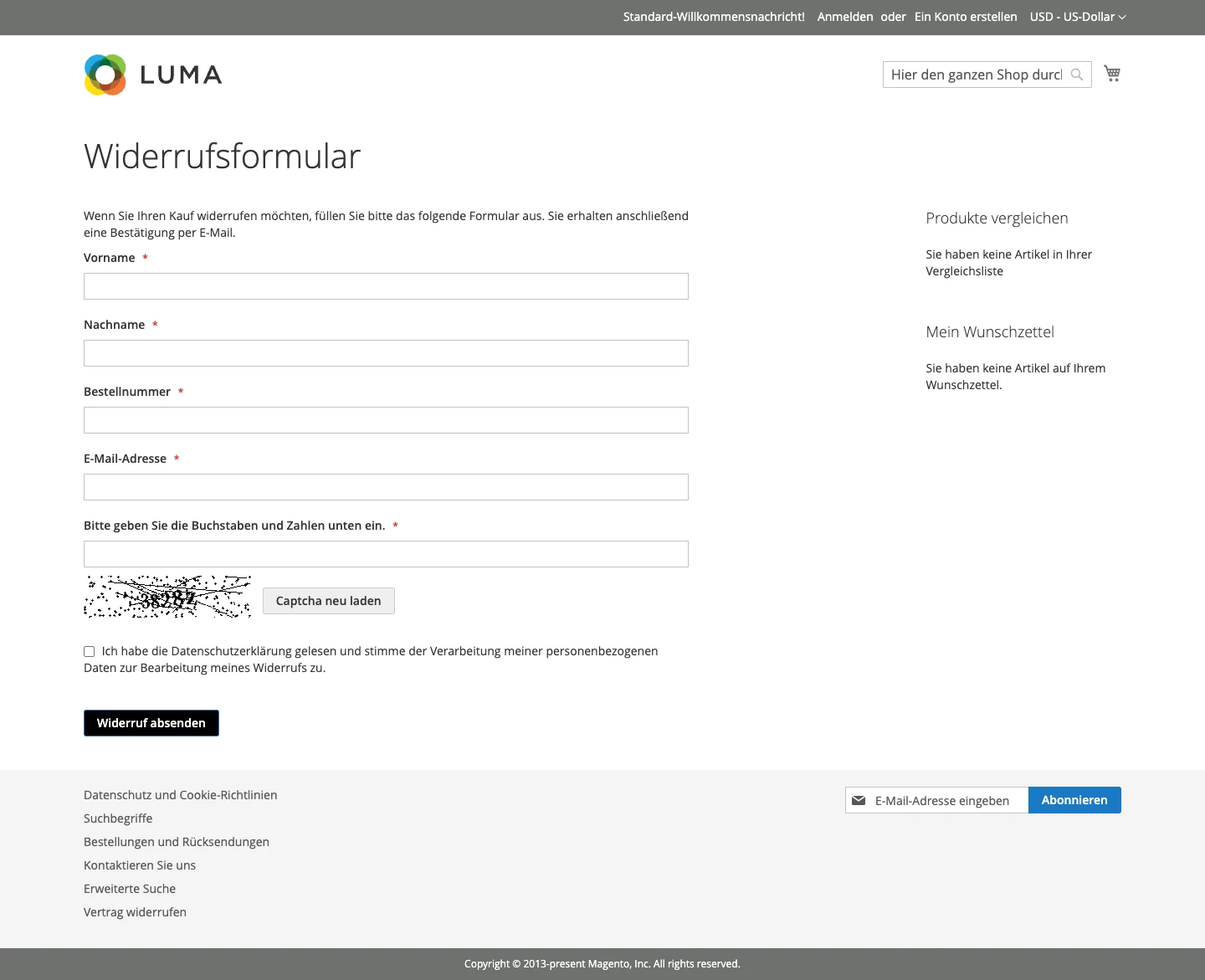
Frontend withdrawal form under route
/withdrawal -
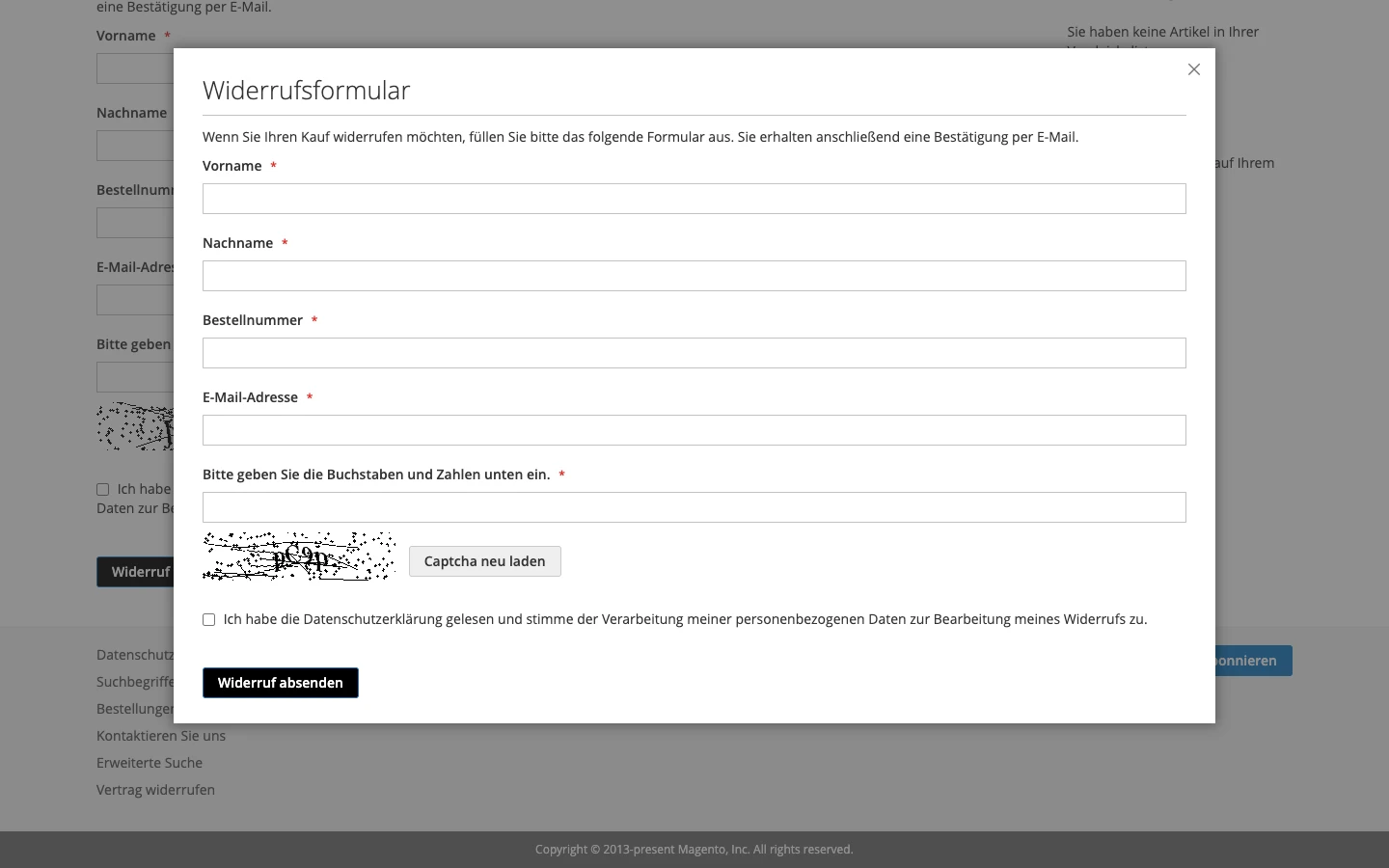
Two display modes: standalone page or popup with configurable position
-
Automatic footer link in all frontend layouts
-
Form-key (CSRF) protection and CAPTCHA validation (also for logged-in customers)
-
Order number / customer email cross-check
-
Optional withdrawal period enforcement (configurable, disabled by default)
-
Rate limiting: max. 3 submissions per order number / email combination
-
Automatic confirmation email to the buyer
-
Automatic notification email to the seller (configurable recipient)
-
Backend grid with all withdrawal requests and status tracking (
sent,confirmed,rejected,rejected_order,rejected_age,rejected_limit) -
Mass actions in the backend grid: delete, set confirmed, set rejected
-
Per-row delete action in the backend grid
-
Inline editing of the status column directly in the backend grid
-
"Withdrawal" column in the sales order grid with direct link to the request
-
Customisable button color, font color and accompanying text (WYSIWYG)
-
Multistore / multiwebsite ready, locale configurable per store view
Backend: General Settings
Path: Stores → Configuration → CleverZoeger → Withdrawal → General
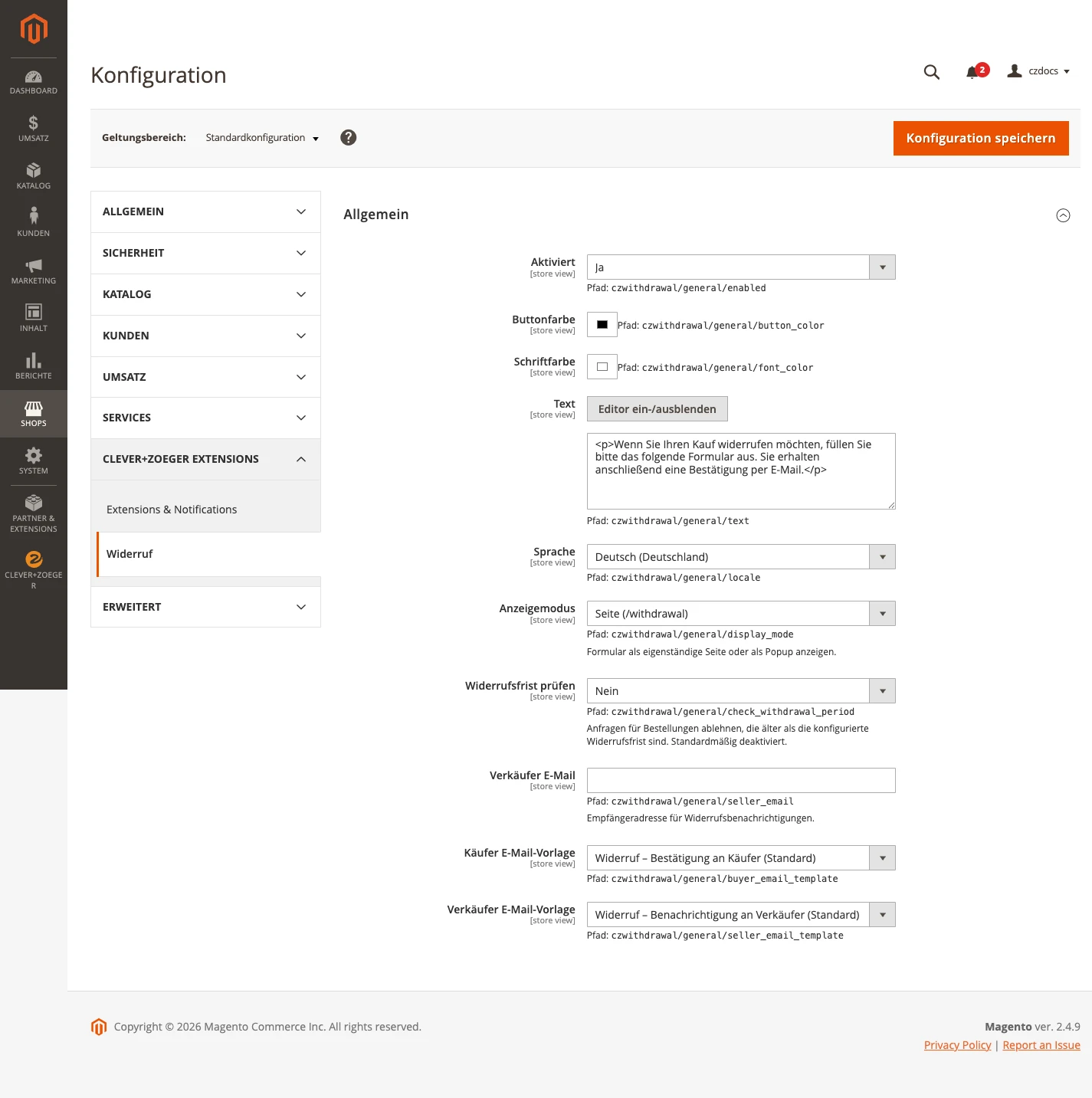
| Setting | Description |
|---|---|
Enabled |
Activates the withdrawal form for the selected scope. |
Button Color |
Background color of the call-to-action button. |
Font Color |
Font color used on the call-to-action button. |
Text |
Accompanying text rendered above the form (WYSIWYG). |
Language |
Locale used for the form labels and emails. |
Display Mode |
|
Popup Position |
Popup positioning, only relevant when |
Check Withdrawal Period |
Reject requests for orders older than the configured withdrawal period.
Disabled by default — when set to |
Withdrawal Period (days) |
Number of days after the order date within which a withdrawal is accepted.
Default |
Seller Email |
Recipient address for the seller notification email. |
Buyer Email Template |
Email template used for the buyer confirmation
(default: |
Seller Email Template |
Email template used for the seller notification
(default: |
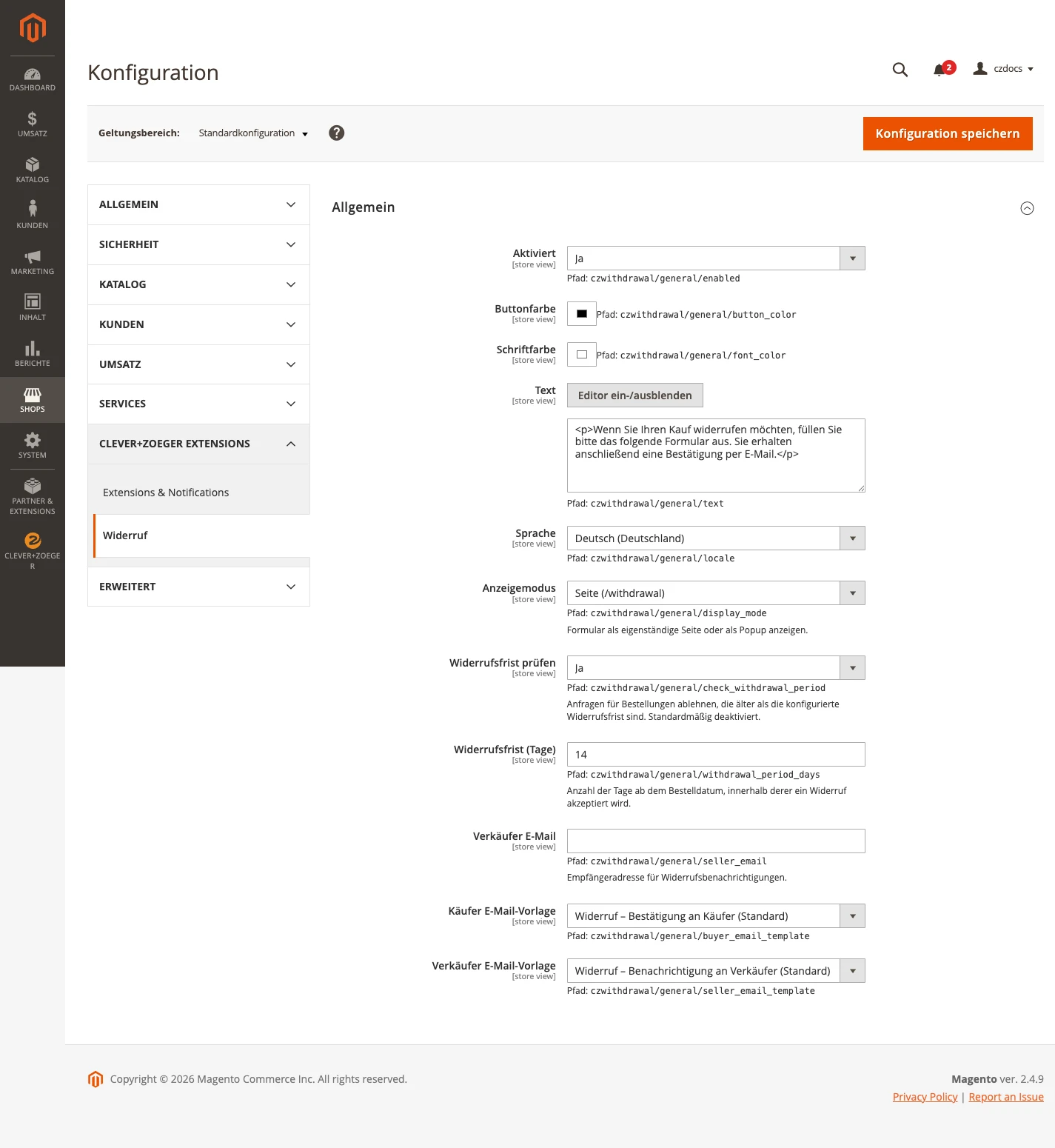
When Check Withdrawal Period is set to Yes, the additional
Withdrawal Period (days) field becomes available (default 14):
Backend: Withdrawal Requests
Path: CleverZoeger → Withdrawal → Withdrawal Requests
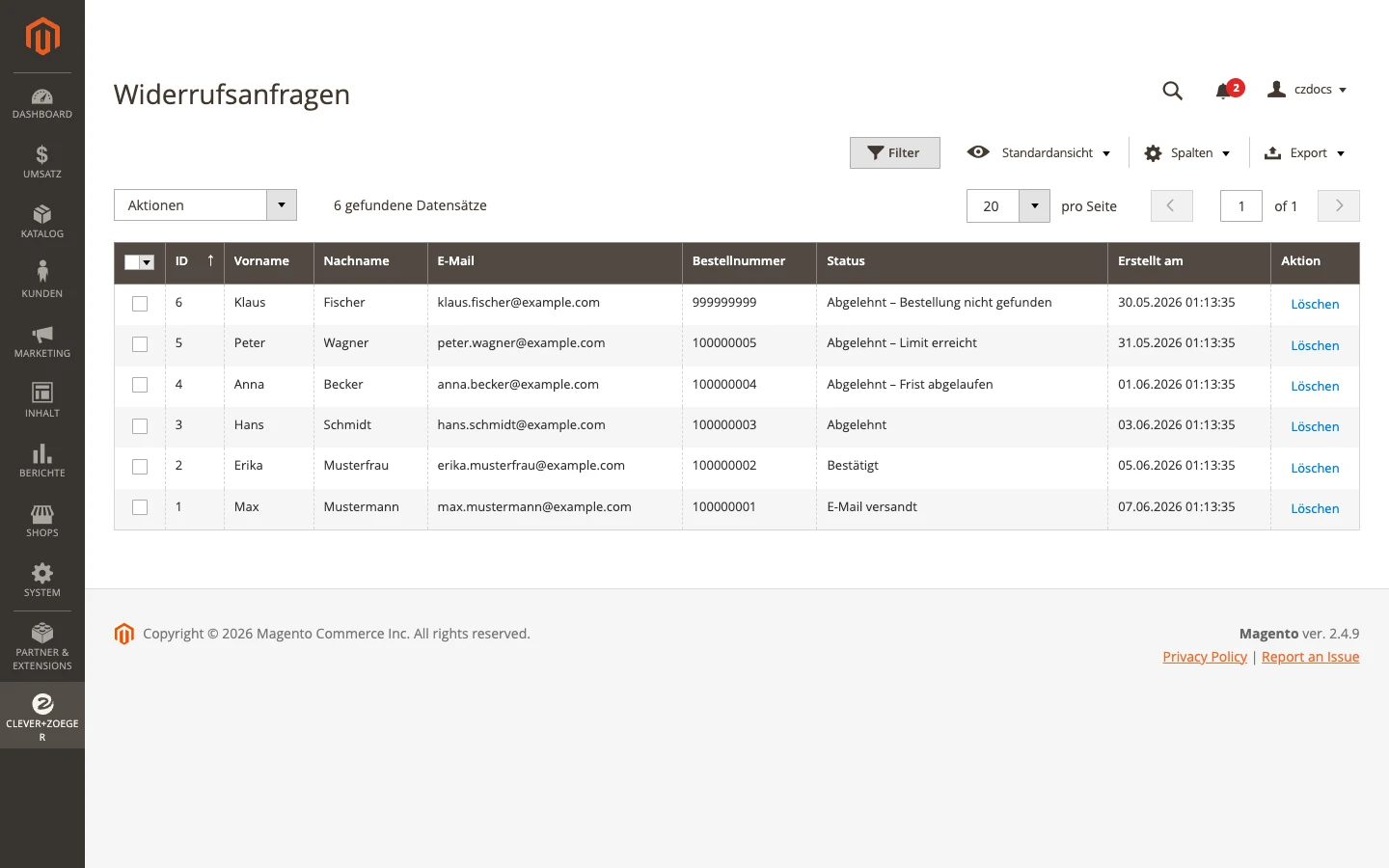
The grid lists all submitted withdrawal requests with filter and search capabilities. Each request stores the customer name, order number, email address and final status.
The status column supports inline editing — click on a status value to open a dropdown with all available statuses and confirm with Save:
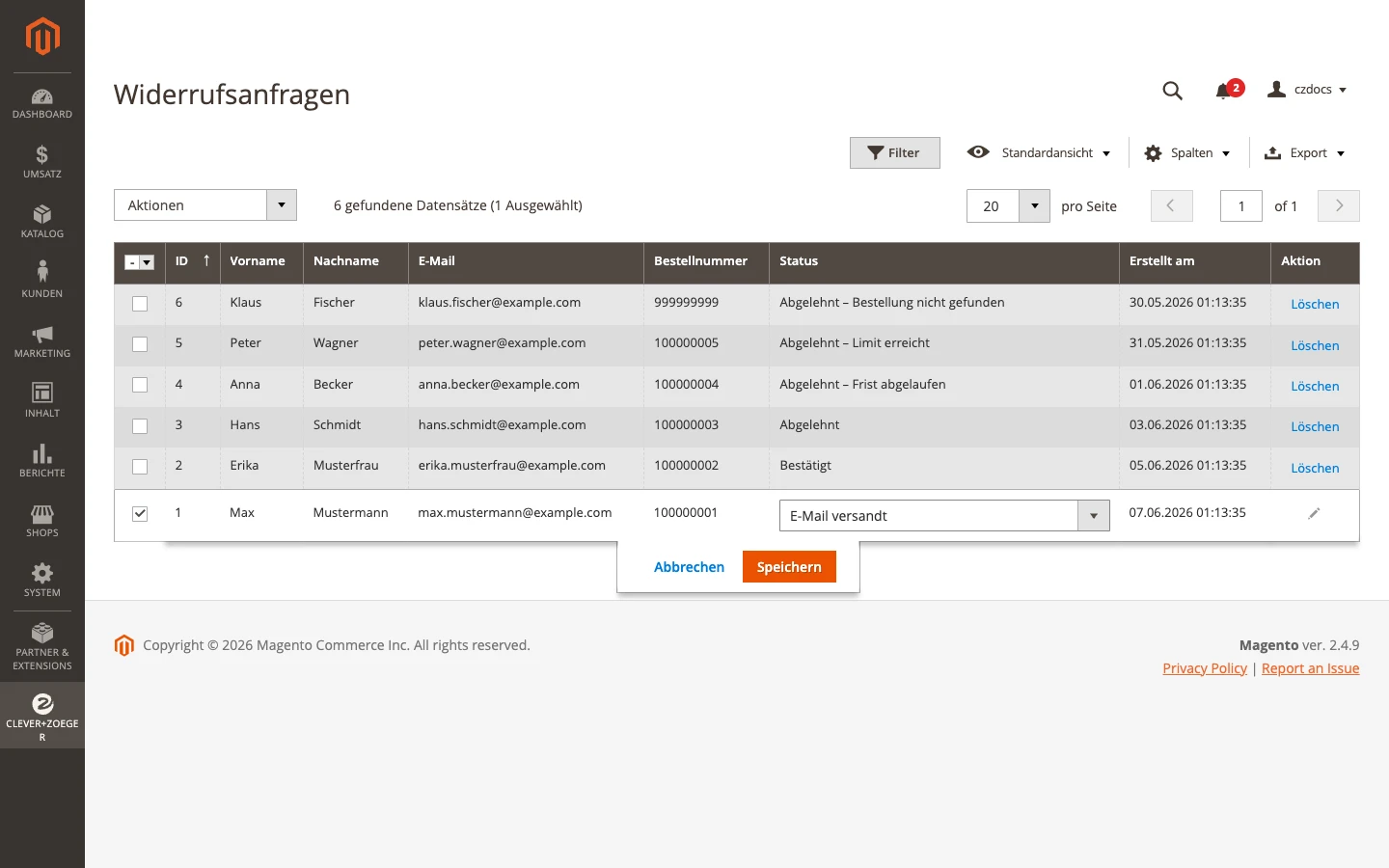
Mass actions (Delete, Set Status: Confirmed, Set Status: Rejected) and a per-row Delete link in the action column round off the grid functionality.
Backend: Sales Order Grid Integration
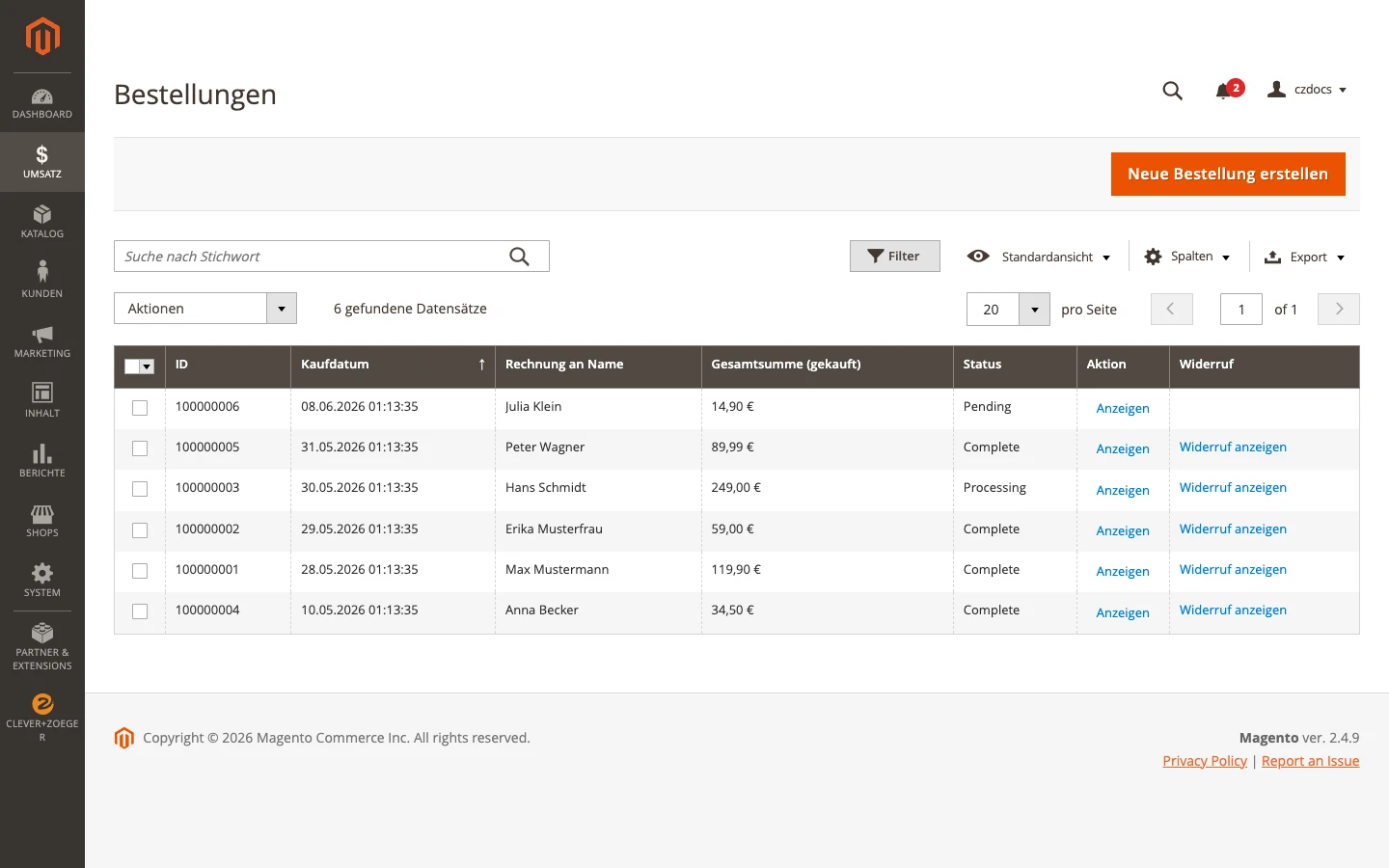
In Sales → Orders the column Withdrawal displays a direct link to the related withdrawal request, if one exists for the order.
Linking the withdrawal form in the order confirmation email
Magento email templates support the directive {{store url="…"}} to render
a fully qualified URL for the current store. The path to the withdrawal form
is withdrawal.
-
Open Marketing → Communications → Email Templates → Add New Template.
-
Load the relevant Magento template (e.g. New Order or New Order for Guest).
-
Add the following snippet at the desired position in the template body:
<p> Sollten Sie Ihre Bestellung widerrufen wollen, nutzen Sie bitte unser <a href="{{store url='withdrawal'}}">Widerrufsformular</a>. </p> -
To prefill the order number in the form, append it as query parameter:
<a href="{{store url='withdrawal'}}?order_number={{var order.increment_id}}"> Widerruf einreichen </a> -
Save the template and assign it under Stores → Configuration → Sales → Sales Emails → Order as New Order Confirmation Template. Clear the configuration cache:
bin/magento cache:clean config

Frontend: Confirmation and Rejection Messages
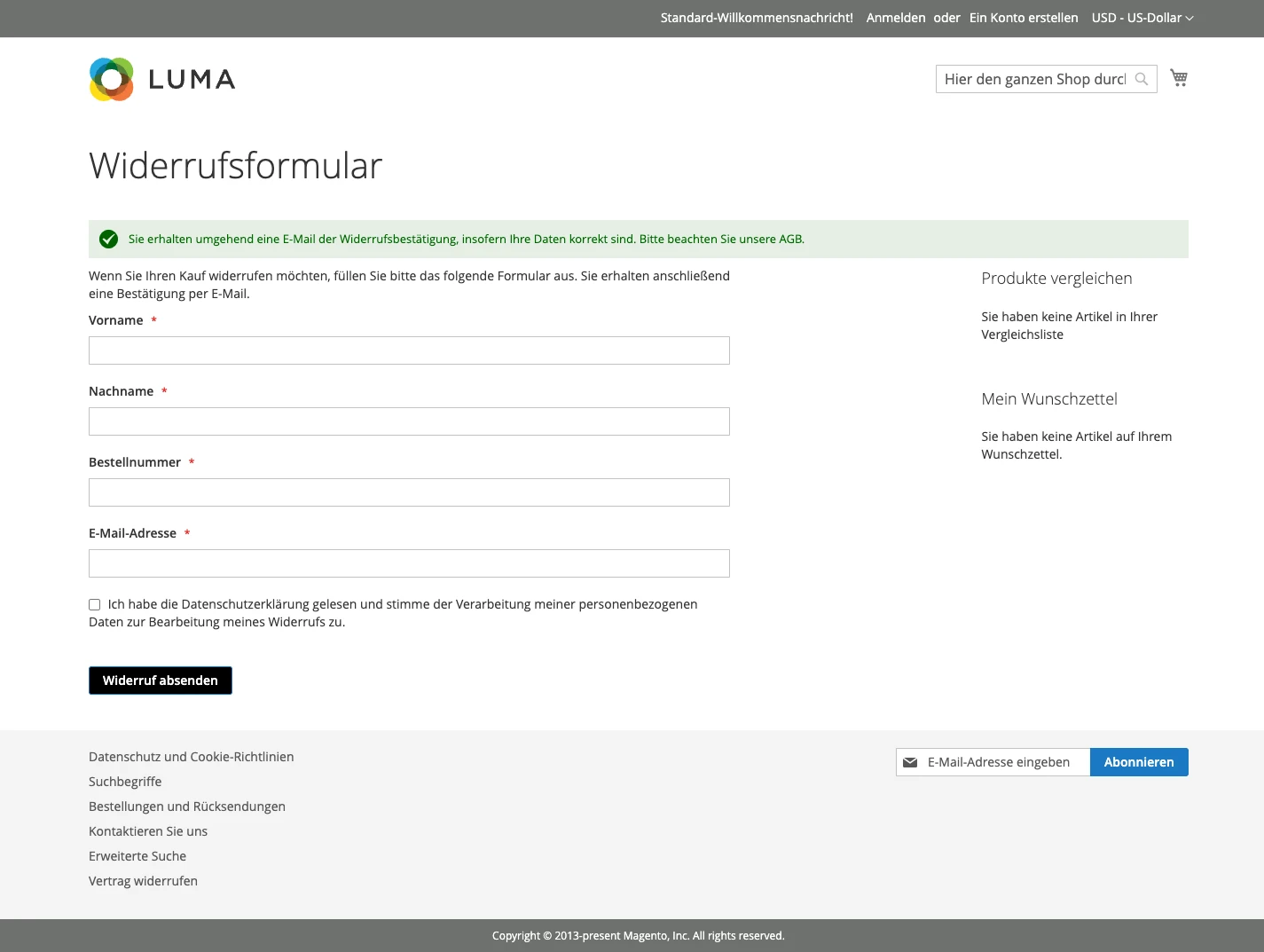
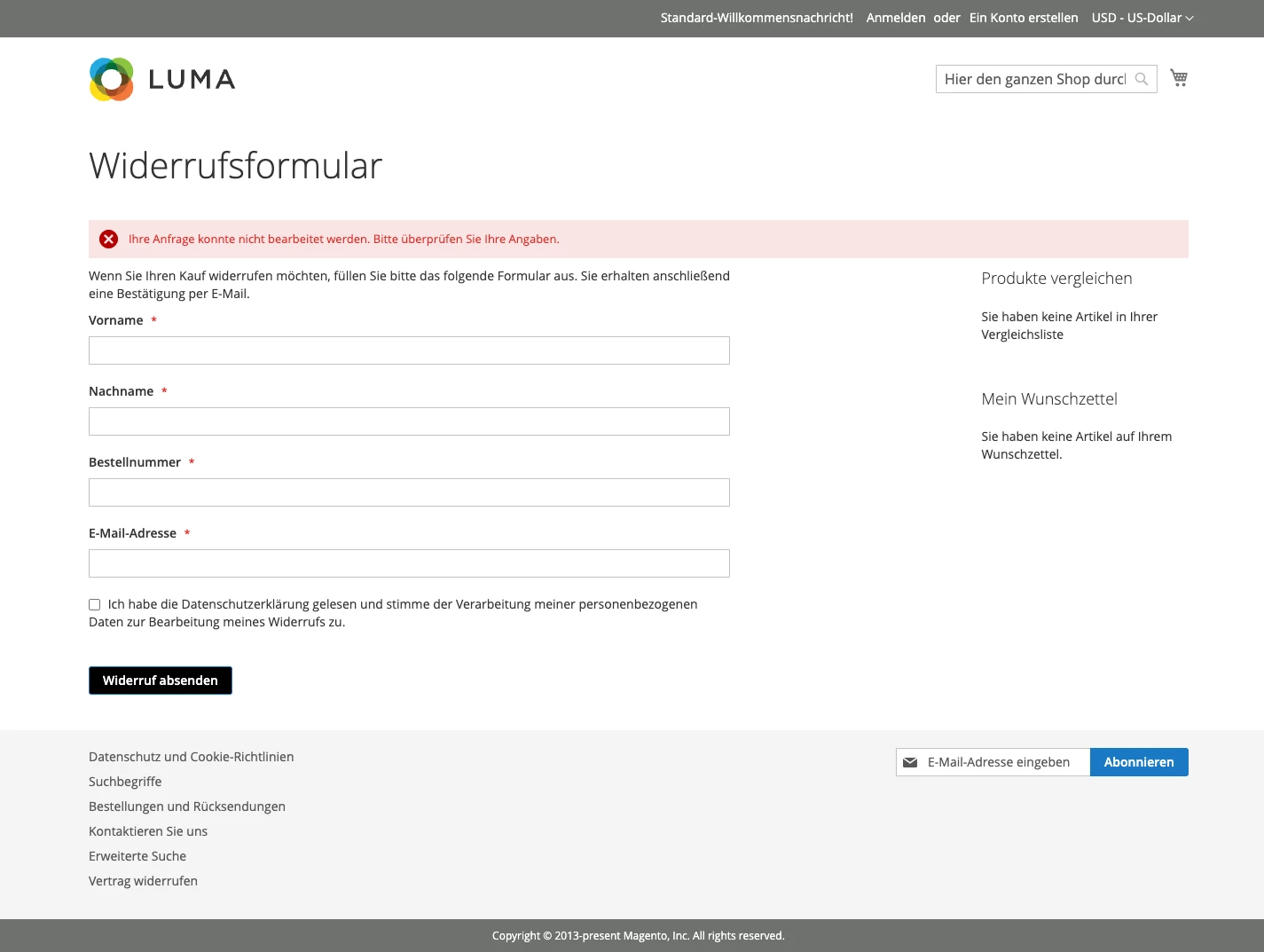
After submitting the form the customer is redirected back to the withdrawal form and sees a status message at the top.
Successful Submission
If all checks pass, a confirmation message is shown and the confirmation email is dispatched:
Rejected Submission
For data protection reasons the customer always sees the same generic message, regardless of the actual rejection reason — the specific reason is only recorded as the backend status of the request:
| Condition | Customer message | Backend status |
|---|---|---|
Order number not found |
Your request could not be processed. Please check your data. |
|
Email does not match the order |
Your request could not be processed. Please check your data. |
|
Order older than the configured withdrawal period (only when Check Withdrawal Period is enabled; disabled by default) |
Your request could not be processed. Please check your data. |
|
More than 3 submissions for the same order number / email combination |
Your request could not be processed. Please check your data. |
|
Validation and Error Messages
In addition, the following messages can appear before the request is processed:
| Condition | Customer message |
|---|---|
Invalid order number format |
Invalid order number format |
A required field is empty |
Please fill in all required fields. |
Invalid email address |
Please enter a valid email address. |
Privacy policy not accepted |
Please accept the privacy policy. |
Wrong captcha code |
Invalid captcha code. Please try again. |
Invalid / expired form token |
Invalid form token. Please try again. |
Confirmation email could not be sent |
An error occurred while sending the email. Please try again later. |